Instruction
On Using Huawei E5830 Via Web Admin:
Power the modem on and
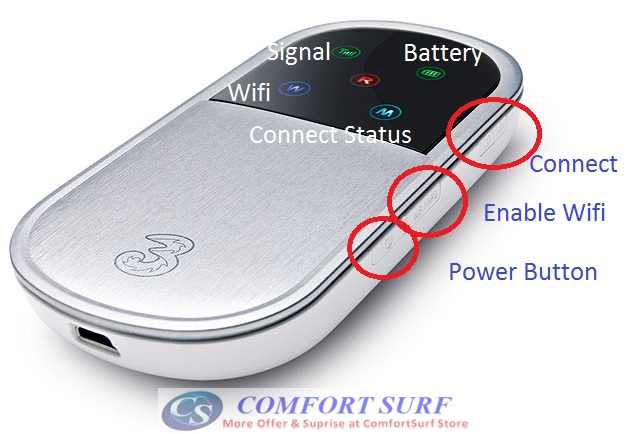
Press the Wifi
button for 3 seconds and wait for the
Blue W to light up.
You should now be able to connect to it via Wifi.
 For Mac OS:
On the Mac open System Preferences.
Under Internet and Wireless click Network.
Select AirPort and click Network Name to see a list of available
wireless networks. Unless you have changed the SSID, you should see the
Mifi listed as 3Wireless-Modem-xxxx where xxx is a unique number
assigned to your Mifi.
For
Windows User:
Just ON your laptop wireless and connect to this modem via wireless.
The wireless name for the modem default is:
"3wireless-Modem-xxxx"
Now that you are connected, open a web browser and go to
http://192.168.1.1

You will see a login screen, the default password is
"admin".
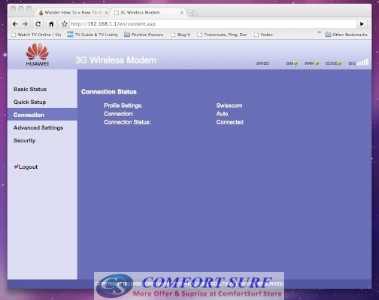
You are now in and looking at the web interface
of you 3 Mifi!!! Woohoo!
 We
will go over a few of the settings that you may find useful:
We
will go over a few of the settings that you may find useful:
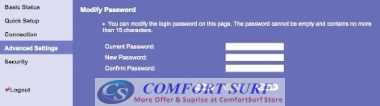
Advanced
Settings -> System -> Modify Password
Go here to change the admin password.
Advanced
Settings -> Dial-up Settings -> Profile Settings
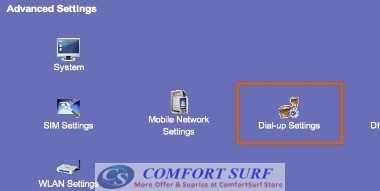
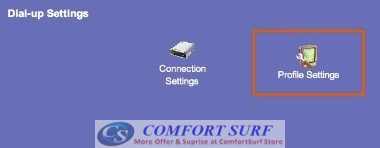 This is where you will enter the APN information that is required by
most carriers (see theAPN List).
This is where you will enter the APN information that is required by
most carriers (see theAPN List).
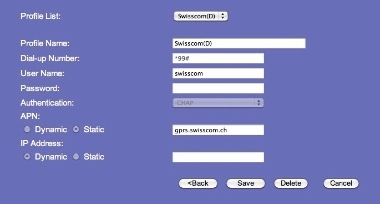 To create a new APN enter an Profile Name, Dial Number, Username,
Password and APN. (Note: not all of the fields need to have data, check
the APN list for details)
To create a new APN enter an Profile Name, Dial Number, Username,
Password and APN. (Note: not all of the fields need to have data, check
the APN list for details)
This is what I entered for Celcom:
Profile Name: Celcom
Dial-up Number: *99#
Username: <Blank>
Password: <Blank>
APN: celcom3g
Once you have entered the details click the
Save button.
Now go to Advanced
Settings -> Dial-up Settings -> Connection Settings
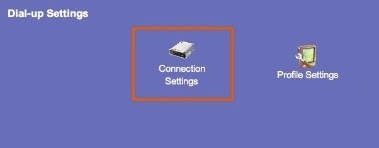 You
need to select the profile to make it active.
You
need to select the profile to make it active.
Other settings of interest:
Advanced
Settings -> WLAN Settings -> WLAN Basic Settings
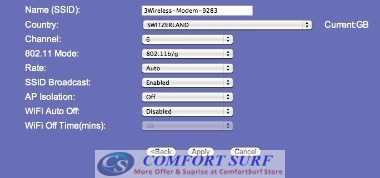 Here
you can change the SSID if you wish.
Here
you can change the SSID if you wish.
Advanced
Settings -> WLAN Settings -> WLAN Advanced Settings
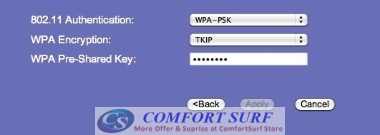 Here
you can change the password (WPA Pre-Shared Key) you enter when
connecting via Wifi.
Here
you can change the password (WPA Pre-Shared Key) you enter when
connecting via Wifi.
The setting is normally doing for first time.
Next time you just need to press the Power ON, Press The wireless
(WIFI/WPS) to enable the wireless, and then press the "Connect" Button.
Hopefully you have found both of these posts useful. Let me know how
you get on. If you have any questions I will do my best to field them
for you.
Thanks.
Comfort Surf


