 Question Question |
|
IP Camera: How to Set the IP Camera 003, XXC-5330-T, XXC-53310-T.
Suitable for ID start with XXC...
|
 Answer Answer |
IP
Camera Setting - XXCamera:
There are many way to set and view at different platform.
You can view from your smartphone / tablet (either Android or
IPhone), or On the computer for single monitoring or centralized
monitoring for concurrent many camera at once place.
Software
CD Link (Latest Version - Most updated) get from below link:
Setting
and View Via Smartphone:
For smartphone apps, you can got it
on the provided CD, or Get from Apps Store / Play store for XXCamera
software or http://www.cdxxcamera.com
for latest version or alternatively at ComfortSurf Website Link.
Just install the apps and
start follow below Guide. (Provided
in the CD as well).
Phone
muse be connected to the internet (WIFI/GPRS/3G), Via LAN (for the
first time).
This
application supports iphone system that is higher than 4.3 released .
This
application supports android system that is higher than 4.3 released .
Install
software on your phone
Android:
acquire software from CD or acquire “xxcamera" from Google
play.
Iphone:
acquire “xxcamera" from APP Store.

Add
Camera:
After install, open the apps and search for camera..
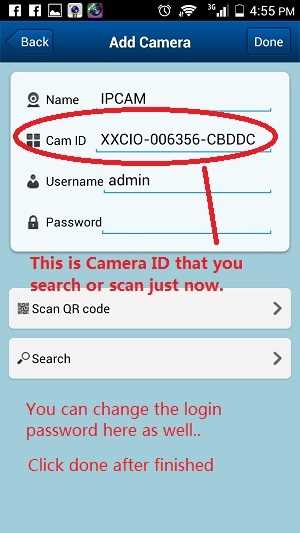
PIR
Input Alarm only for model come with PIR function.
Alarm
Phone Call - Only for model that supported.
Device list set (like the above picture) ----Alarm----Motion detection
armed
1. Motion detection armed (for models WSD,
XXC-5330-T
, XXC-50100-H,
XXC-5330-PIR,
XXC-53100-T)
2. PIR input armed(only for models XXC-5330-PIR,
XXC-53100-T)
3. PIR+ Motion detection armed (only
for models XXC-5330-PIR,
XXC-53100-T)
Function:
How
to Setting the IP Camera Via PC - by Search Tools:
1. Please connect your IP
Camera Via LAN Cable to your
Router LAN Port
and then Power ON.
2. Open SearchTools Software (Provided in CD), and
click search. (if you can't get search the camera,
please reset the IP camera at the bottom of IP Camera and try again).
To reset, in power ON condition, press the reset
switch for few second and it will restart.

3. Device found and the IP shown. Click on the IP will bring you to the
IP camera interface.
4. Click the video stream (for firefox)
- becuase i am using firefox. and you will bring to IP camera
Video stream page.

5. Click the setting to go setting page and you can change the language
as in picture.
6. Next you can do setting the time / alarm / motion / SD card
recording (for WSD model) and also connect the IP Camera via wifi to
your router instead of LAN.
We have capture some picture for your reference.


To close the LED blinking
light, just go to the PTZ and Singal Lamp select Close.
Monitoring
Via Centralized monitoring software
1. Please connect your IP Camera Via LAN Cable
to your router LAN Port and then Power ON.
2. Install the centralized Monitoring software (device client) and
start the software.
3. Follow the instruction as per in picture below for the setting. Done.


Pls
note:
Some computer due to permission setting, you unable to see the Device
Client software coming out after you clicked it. It is permission
matter.
Just right click and select properties on Device Client icon, and go
security tab, at the gropu of user (select the user that are using this
computer) and tick allow for full control and others, then it should be
ok.
Thanks.
|
|


