ITEM:
Model: Huawei_B593S-22
Latest Huawei B593s - 22 4G
LTE CAT 4 100Mbps WiFi Router
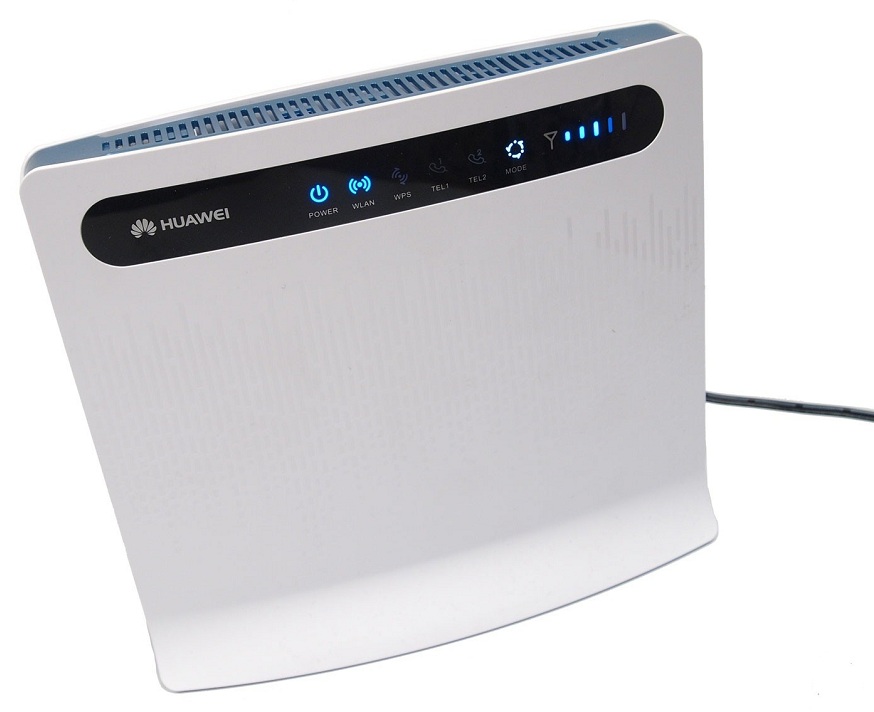

- 4G
LTE CPE HUAWEI B593-22 Router is the first LTE TDD wireless broadband
router of the world
- It
supports LTE TDD/FDD 800/900/1800/2100/2600MHz, up to 100Mbps download
speed & access up to 32WiFi devices that become an ideal home
entertainment & information exchange hub
- It
supports multi-devices simultaneous high speed access, perfect for
SOHO's & small businesses with its connectivity options of the
world
- LTE
Download up to 100Mbps
- LTE
Upload up to 50Mbps
- 4G
LTE TDD 2600MHz
- 4G
LTE FDD 800/900/1800/2100/2600MHz
- 3G
HSPA+/UMTS 900/2100MHz
- 2G
EDGE 850/900/1800/1900MHz
- Two
SMA external antenna slot
- Wi-Fi
b/g/n, up to 32 simultaneous devices
- Firewall,
VoIP, TR069 remote management
- HTTP
online upgrade, QoS, USB share, UPnP
- IPv6,
DLNA, fax, print, VPS, VLAN (option function)
- OS:
support Windows XP/Vista/7/8, Linux, Mac OS

- Transmission
Speed 4G (MAX):
- Download
100
Mbit / s
- Upload
50 Mbit / s
- Transmission
Speed 3G (MAX):
- Download
42.2 Mbit / s
- Upload
5.76 Mbit / s
- Wi-Fi: Wi-Fi
(802.11 b / g / n)
- Additional
Antenna Location: Two
Antenna Ports
- Operation
System is compatible with:
- Windows
2000/Windows XP/ Windows Vista/ Windows 7/8
- Mac
OS 10.5/ Mac OS 10.6/ Mac OS 10.7
- Linux


Application
Instruction:
- Insert
the SIM card into the SIM Card Slot
- Connect
the power cord to the modem & the wall socket
- Turn
on your computer & any other devices modem LAN & USB
Ports
- Turn
on your modem POWER Button
Connecting PC to the
Modem WLAN Connection
- Turn
on your modem POWER Button
- Make
an indicator that the WLAN is enabled. To activate the WLAN feature on
and off by holding the WLAN button for more than 3 seconds
- Select
your network from the list of wireless networks, the SSID name is the
same as the name of your modem and press connect. Enter the network
security key
- If
the PIN code request is active, log network management page
(http://192.168.1.1) and enter the correct PIN code in the field
provided
Note:
* The SSID & network security key can be found on the label on
the back of the modem
* You can review
& change the WLAN security settings for the network-management
page under General Settings > WLAN Settings > Security
Network Management Page
Opening
- Make
sure that your flash drive & a computer or device the
connection is established correctly
- Start
a web browser and enter the addresss http://192.168.1.1
- If
the PIN code request is active, asking the network management side of
it. The default PIN is 0000
Light Indicator:
| Ligth Mode |
Light |
Desciption |
| MODE |
Blue |
This
light is a constant blue, when the modem is connected to the 4G
network, but no data is transferred.
The indicator light flashes blue when data is being transferred |
| MODE |
Green |
This
indicator light is constantly green when the modem is connected to a 3G
network, but no data is transferred
The indicator light flashes Green when data is being transferred |
| MODE |
Orange |
This
light is constantly orange when the modem is connected to a 2G network,
but no data is transferred
The indicator light flashes orange when data is being transferred |
| MODE |
White |
This
light will flash white when the modem is connect to the wireless network |
| MODE |
Red |
This
light is constantly red when the modem cannot connect to a wireless
network or modem is not a wireless network |
| MODE |
Mulberry |
This
light is on when the SIM card is not recognized, or PIN has not been or
PIN authentication fails |
| WLAN |
ON |
WLAN
function is enabled |
| LAN
1 - LAN 4 |
ON |
This
light is on when the computer or other device is connected to the LAN
port |
| SIGNAL |
ON |
More
bars are lit, the stronger the wireless signal |

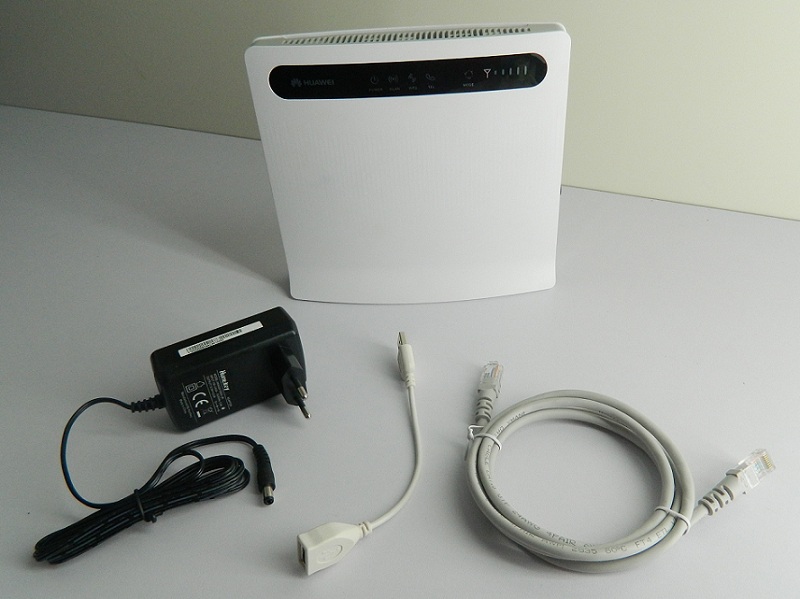
- 1
x Huawei B593s-22 Router (SIM Unlocked)
- 1
x Huawei Power Adapter
- 1
x RJ45 Network Cable
- 1
x USB Extension Cable


|