ITEM:
Model: Huawei B593U
Original
Huawei B593U Full LTE
Quadband 100Mbps Mobile Wifi Hotspot Mifi Router
Unlocked for all Network (suitable for celcom digi maxis umobile)
Latest
and Fastest Mifi
Router Ever..
4G LTE 1000Mbps
3G DC-HSPA+ 42Mbps
2G EDGE 384Kbps
Wifi B/G/N
Huawei
B593 4G WiFi
Router
The
Huawei B593 LTE 4G Router delivers rapid mobile broadband on
the 4G
network*, connecting you to your world quicker than ever before!
Hook up
your devices and enjoy quicker wireless mobile internet, smoother HD
video streaming and gaming with less lag. Perfect for home
entertainment, home office or small business.
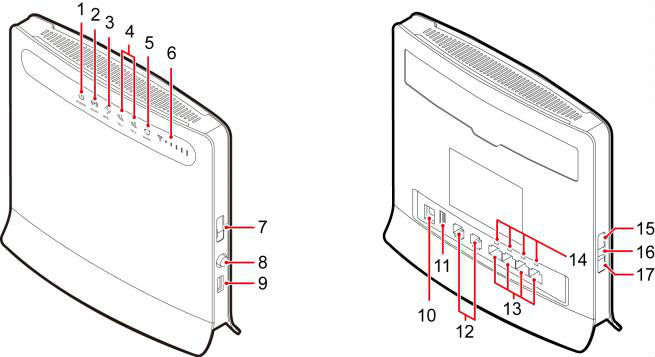
1.
POWER Indicator
2. WLAN LED
3. WPS
indicator
4. TEL indicator
5.
MODE indicator
6.
SIGNAL indicator
7. SIM card slot
8. POWER button
9. USB Port
10. Power supply position
11.
USB-Port
12. Telephone port
13. LAN port
14 LAN indicator lights
15. WPS button
16.
RESET button
17. WLAN mode
-
4G
Bands (MHz)
LTE
FDD 800/900/1800/2100/2600 MHz
-
3G
Bands (MHz)
UMTS
900/2100 MHz
-
GSM
Bands (MHz)
GSM:
850/900/1800/1900 MHz
-
Dimensions
1900mm
x 35mm x 165mm
-
Weight
Approx
500g
-
External
Interfaces
4x
Ethernet interface (RJ45)
2x POTS interface (RJ11)
2x USB interface
1x SIM card slot
1x WLAN button
1x WPS button
1x POWER button
-
Operating
System Support
Win
XP SP2/SP3, Vista SP1/SP2, Win 7, Mac OS X 10.5/10.6/10.7 with latest
upgrades
Application
Instroduction:
1.
Insert the SIM card into the SIM card slot.
2.
Connect the power cord to the modem and the wall socket.
3.
Turn on your computer and any other devices modem LAN and USB ports.
4.
Turn on your modem POWER button.
CONNECTING
PC TO THE MODEM WLAN CONNECTION
1.
Turn on your modem POWER button.
2.
Make an indicator that the WLAN is enabled. To activate the WLAN
feature on and off by holding the WLAN button for more than 3 seconds.
3.
Select your network from the list of wireless networks, the SSID name
is the same as the name of your modem and press connect. Enter the
network security key.
Note:
* The SSID and network security key can be found on the label on the
back of the modem.
* You can review
and change the WLAN security settings for the network-management page
under General Settings> WLAN Settings > Security.
4.
If the PIN code request is active, log network management page
(http://192.168.1.1 ) and enter the correct PIN code in the field
provided.
Network
Management Page Opening
1.
Make sure that your flash drive and a computer or device the connection
is established correctly.
2.
Start a web browser and enter the address http://192.168.1.1
3.
If the PIN code request is active, asking the network management side
of it. The default PIN is 0000.
Light
Indicators:
light
Mode
light
Description
MODE
Blue
This light is a constant blue, when the modem is
connected to the 4G network, but no data is transferred. The indicator
light flashes blue when data is being transferred.
MODE
Green
This
indicator light is constantly green when the modem is connected to a 3G
network, but no data is transferred. The indicator light flashes Green
when data is
being transferred.
MODE
Orange
This light is
constantly orange when the modem is connected to a 2G network, but no
data is transferred. The indicator light flashes orange when data is
being transferred.
MODE
White
This light will flash white when the modem to connect to the
wireless network.
MODE
Red
This light is constantly red when the modem cannot
connect to a wireless network or modem is not a wireless network.
MODE
Mulberry
This
light is on when the SIM card is not recognized, or PIN has not been or
PIN authentication fails.
WLAN
On
WLAN function is enabled.
LAN1-LAN4
On
This light is on when the computer or
other device is connected to the LAN port.
SIGNAL
On
More bars are lit, the stronger the
wireless signal.
Package Content:
1 x Huawei B593 router (SIM unlocked)
1 x Huawei power adapter
1 x RJ45 network cable
1 x USB extension cable
1 x Manual & Packaging
3 months warranty
Optional upgrade 6 months add RM35
Optional upgrade 6 months add RM100
Thanks
for visit.
Reseller
or Dropshipping reseller are welcomed..!!
|